Report Writing enables sustainability and reporting teams to draft, collaborate on, and finalize ESG reports directly within the Novisto platform. By embedding live-linked data from your Metric Library, Report Writing eliminates version chaos, manual copy-pasting, and disconnected spreadsheets, keeping figures traceable and audit-ready from first draft to final design handover.
This guide outlines the core architecture of Report Writing, prerequisite access and user roles, step-by-step procedures for creating and structuring reports, embedding live Novisto data, collaborating in real time, managing versions and audit trails, and exporting your completed draft.
Table of Contents
- Overview & Key Benefits
- Before You Start: Access & User Roles
- Create a Report
- Manage & Structure Sections
- Embed Live Novisto Data
- Synchronize & Keep Data Current
- Real-Time Collaboration & Sharing
- Versions & Audit Trail
- Section Locking & Exporting
Overview & Key Benefits
Traditionally, ESG reporting requires exporting figures out of software into Word documents and spreadsheets, causing broken data links, competing file versions, and endless email chains. Report Writing brings the final mile of ESG disclosure directly inside Novisto:
- Live, Linked Data: Embedded figures remember their origin metric, fiscal year, and business unit. Updating a data point in Novisto updates the report automatically.
- Single Source of Review: Multiple contributors, reviewers, and approvers work simultaneously in one live document with real-time co-editing, comments, and @mentions.
- End-to-End Auditability: Every edit, embedded data point, comment, and permission change is recorded in a tamper-evident audit trail with one-click navigation back to source metrics.
- Design Handover Ready: Once all narratives, figures, and sign-offs are complete, export clean, locked drafts directly to PDF or Word for external layout and publication.
NOTE: REPORT WRITING SCOPE & DESIGN TOOLS
Report Writing serves as a collaborative word processor designed to eliminate draft sprawl across Word and Excel. It is not a graphic layout software (such as Adobe InDesign). The intended workflow is to draft, review, and finalize all narrative substance and data accuracy within Novisto, then export the finalized content for branded graphic design.
Before You Start: Access & User Roles
Before using Report Writing, ensure the following configuration steps are in place:
- Feature Activation: Report Writing is included in your ESG subscription. If Report Writing is not visible under the Report menu, contact your Novisto Customer Success Manager to activate the feature for your organization.
- Platform User Permissions: Your account role determines whether you can create new reports or solely work on reports shared with you. Users with creation privileges can view, create, rename, and manage all organization drafts.
- Report-Level Collaborator Roles: Each report has four specific roles assigned on a per-report basis:
- Owner: The creator of the report. Maintains full administrative control and cannot be removed or demoted.
- Editor: Can write, edit narrative, restructure sections, embed and synchronize metrics, add comments, and share the report.
- Commenter: Can view the report, participate in comment threads, and resolve feedback. Cannot modify text or data embeds.
- Viewer: Has read-only access to view report content without editing or commenting permissions.
Create a Report
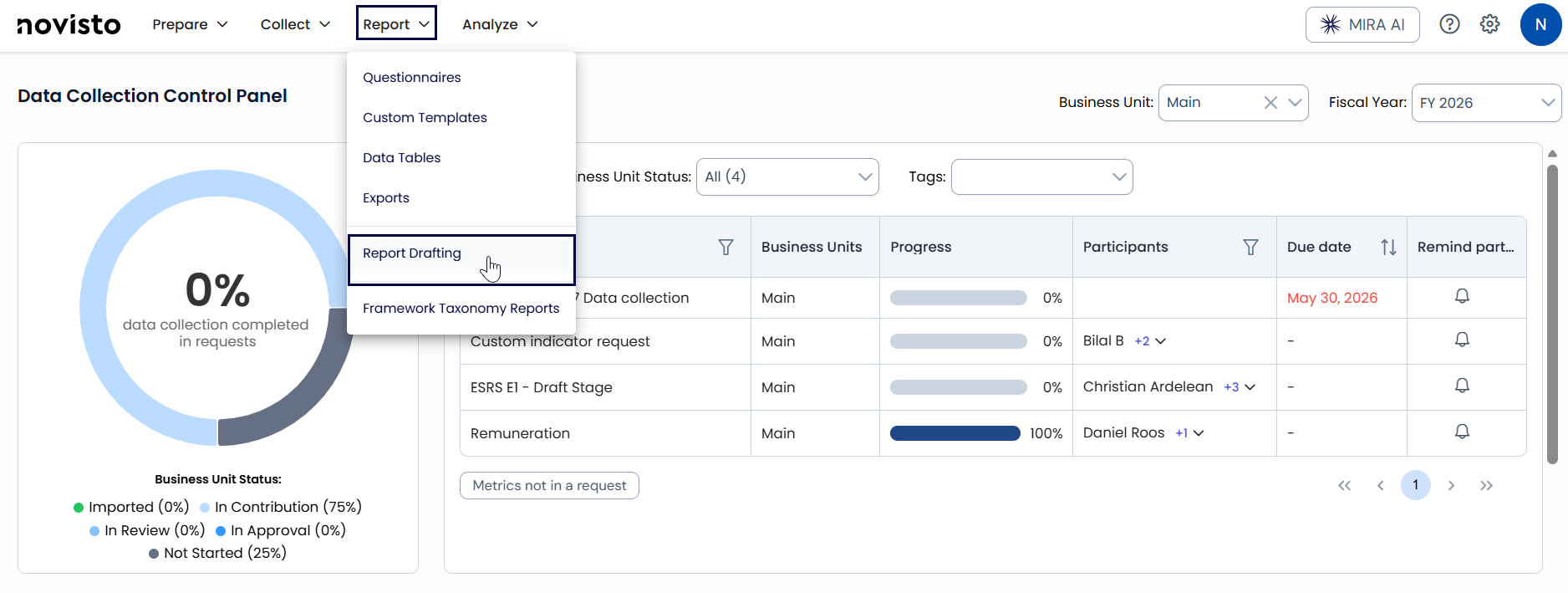
To create a new report, navigate to Report > Report Writing in the main navigation menu:
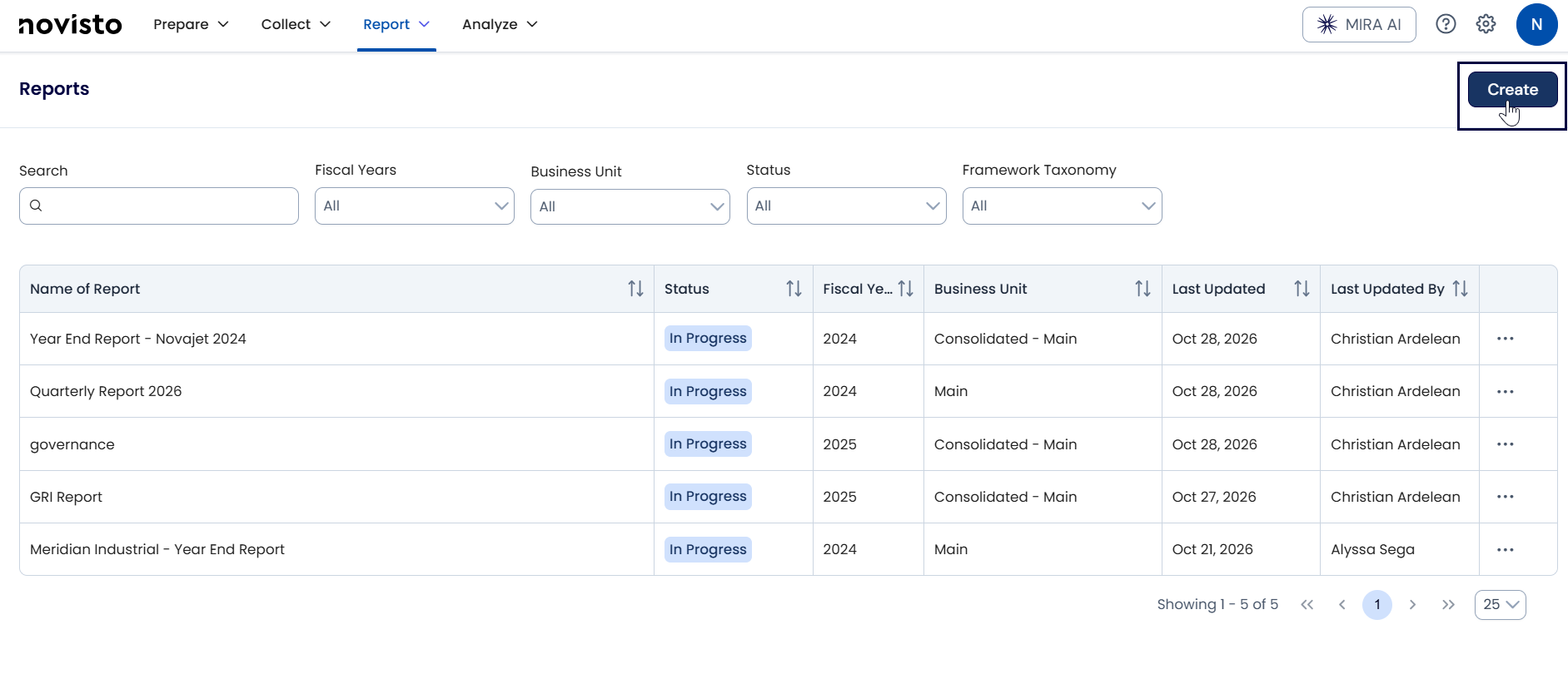
- Click the + Create button in the upper-right corner of the Reports page.
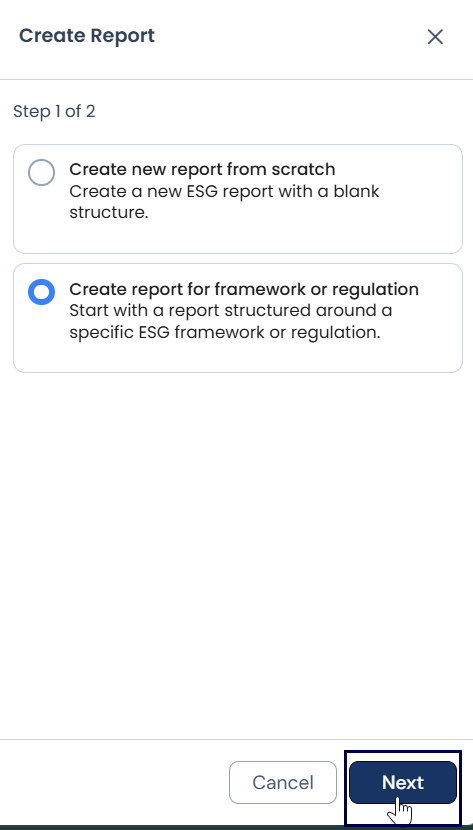
- Choose your starting format:
- Create report for framework or regulation: Automatically populates the document structure with standard headings and pre-fills all disclosures with your existing platform data (e.g., CSRD / ESRS, GRI, or SASB).
- Create new report from scratch: Generates a clean, blank slate allowing you to build custom outlines for board updates, executive summaries, or custom disclosures.
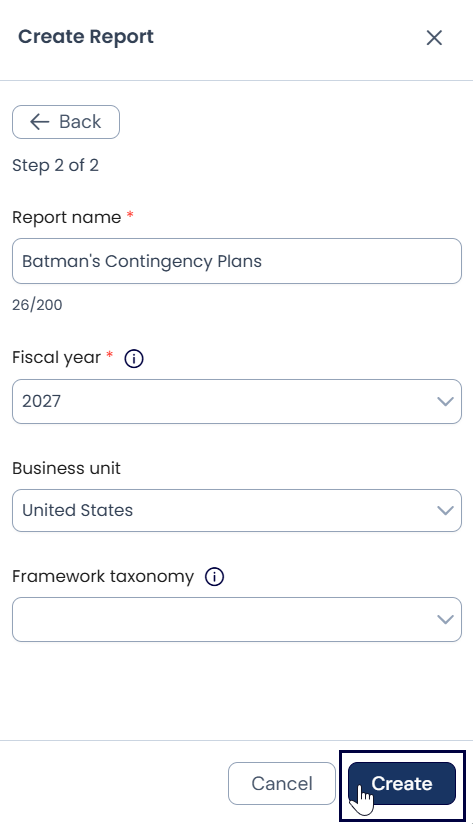
- Enter a unique Report Name and assign a primary Fiscal Year. Optionally select a default Business Unit and framework taxonomy.
- Click Create. (Note: When generating from a large framework, please remain on the page while the document outline and metrics build).
BEST PRACTICE: METADATA LABELS
The Fiscal Year and Business Unit assigned at creation serve as organization labels to help teams filter and locate drafts on the Reports landing page. They do not restrict what you can embed: a report labeled for FY2026 can freely incorporate historical figures from FY2025 or other operational entities.
Manage & Structure Sections
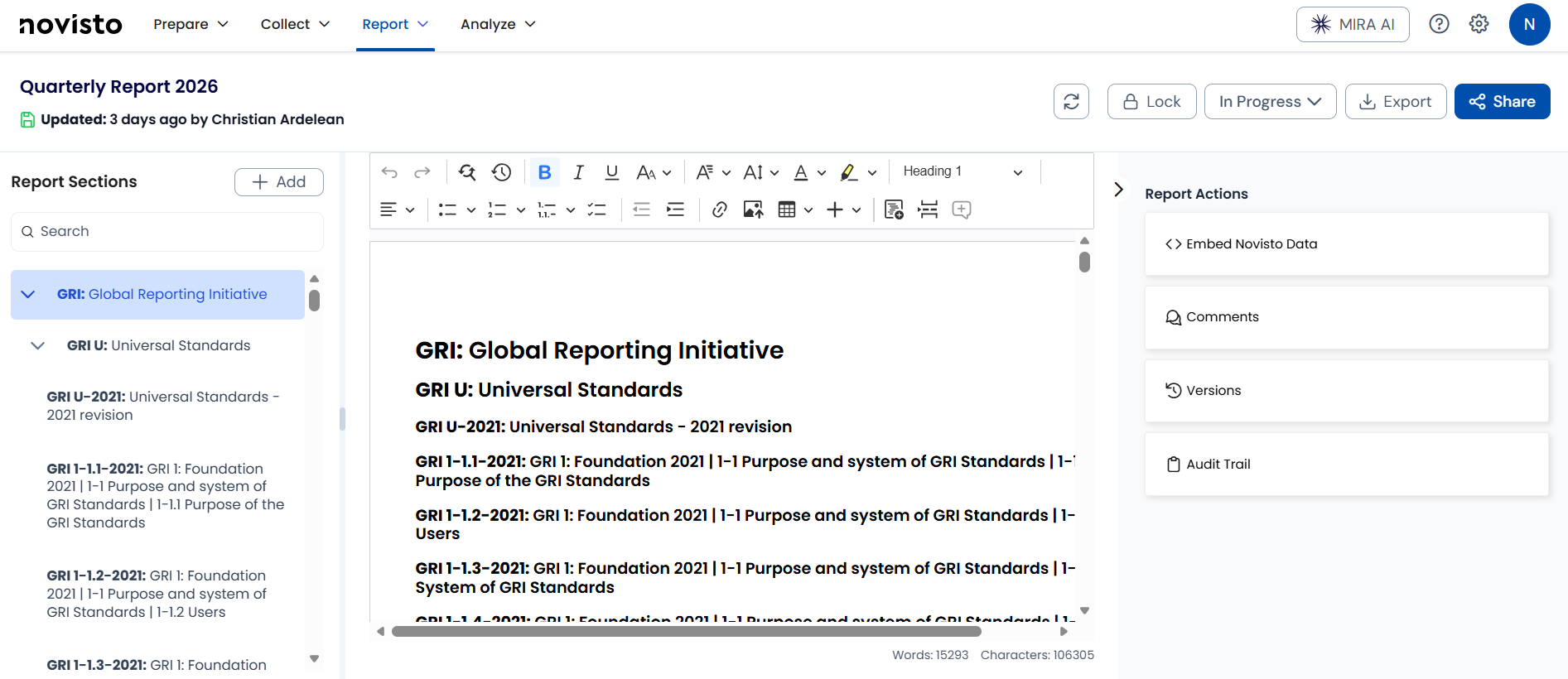
The left-hand sidebar displays your live document outline, automatically populated from heading styles applied in the editor:
- Automatic Outline Hierarchy: Applying Heading 1, Heading 2, or Heading 3 in the text editor automatically nests sections and sub-sections in the navigation tree.
- Add Sections: Click the + Add button at the top of the outline to append a new section at the end of the document.
- Drag-and-Drop Reordering: Drag any section up or down in the outline panel. The corresponding body paragraphs, embedded metrics, and sub-sections move together in the document.
- Renaming & Deletion: Modifying heading text in the editor immediately updates the outline title. Deleting a section via its three-dot menu removes the heading and all associated contents.
Embed Live Novisto Data
Rather than manually entering numbers, embed live tokens that connect directly to your Metric Library:
- Place your cursor where the figure should appear in the text or table.
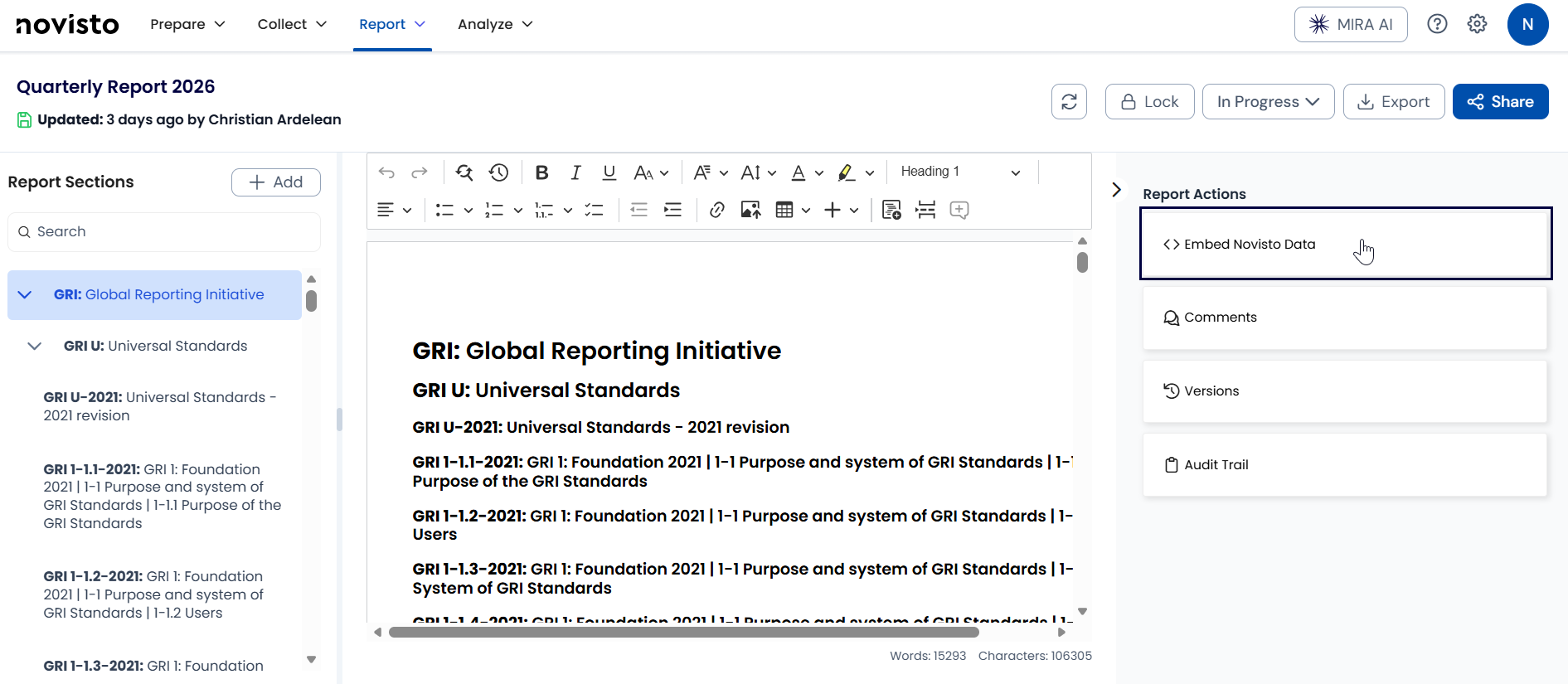
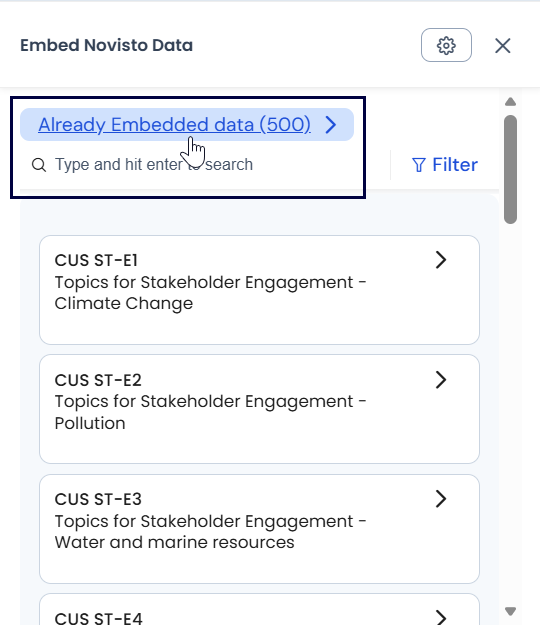
- Open the Embed Novisto Data panel on the right sidebar.
- Search for the desired metric using standard keywords or natural descriptions.
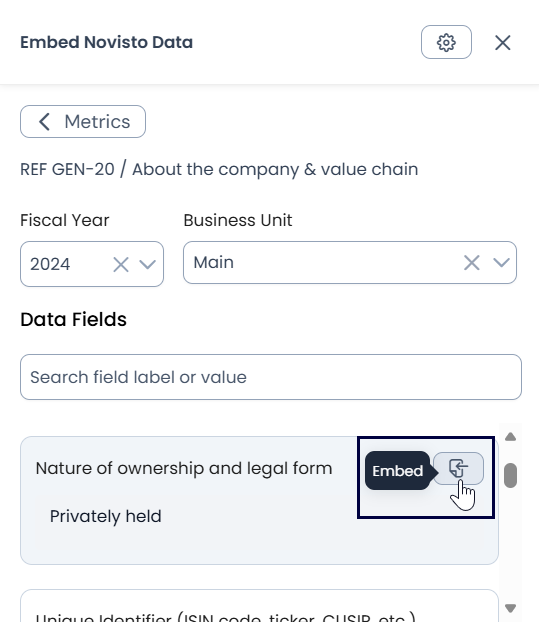
- Select the appropriate Fiscal Year and Business Unit from the dropdown filters to choose the specific value to embed.
- Click Embed. Configure display attributes such as including units, field labels, or decimal precision, then insert the field.
IMPORTANT: VERIFY FISCAL YEAR AND SCOPE BEFORE EMBEDDING
Because embedded tokens look uniform once placed in text, verify the Fiscal Year and Business Unit selections in the embedding panel before inserting numbers. You can review all figures currently used in your draft by checking the Already Embedded Data tab at the top of the panel. Gaps with missing values appear clearly as No Value tokens so your team can identify and chase pending disclosures.
Synchronize & Keep Data Current
As ESG metrics and audit sign-offs are updated across Novisto, Report Writing keeps your narrative aligned:
- Automatic Sync on Open: Whenever a report is opened by an Editor or Owner, Novisto checks embedded figures and refreshes any changed metrics in the background.
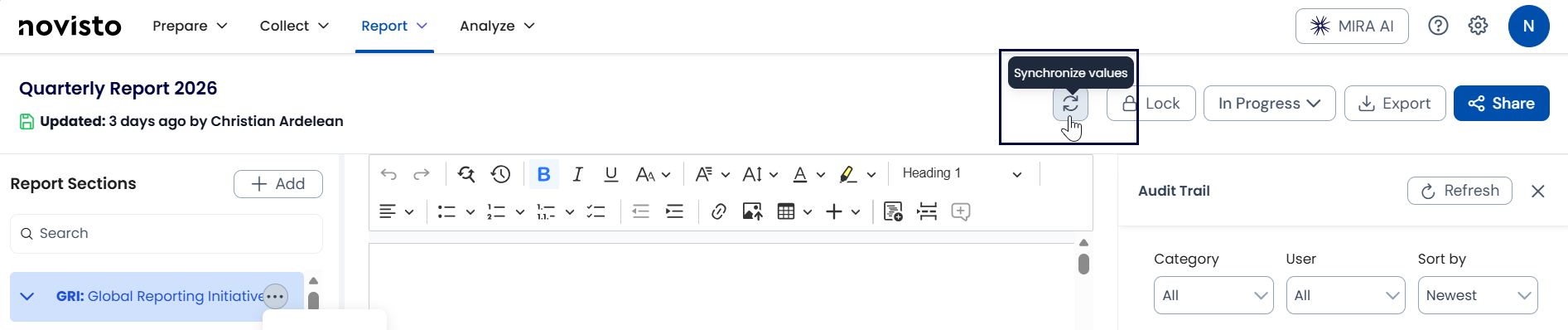
- Manual On-Demand Sync: Click the Sync icon in the top toolbar to pull the latest Metric Library values into the report immediately before conducting a team review or export.
- One-Way Data Flow: Synchronization flows from the Metric Library into the report. If a user manually overwrites an embedded figure directly in the editor, the system prompts a warning, unlinks the token, and records the manual edit in the audit trail.
- Trace to Source: Click any embedded figure and select View in Metric Library to jump directly to the underlying metric, calculation details, and audit history.
Real-Time Collaboration & Sharing
Report Writing enables synchronized multi-stakeholder collaboration across legal, communications, operations, and sustainability:
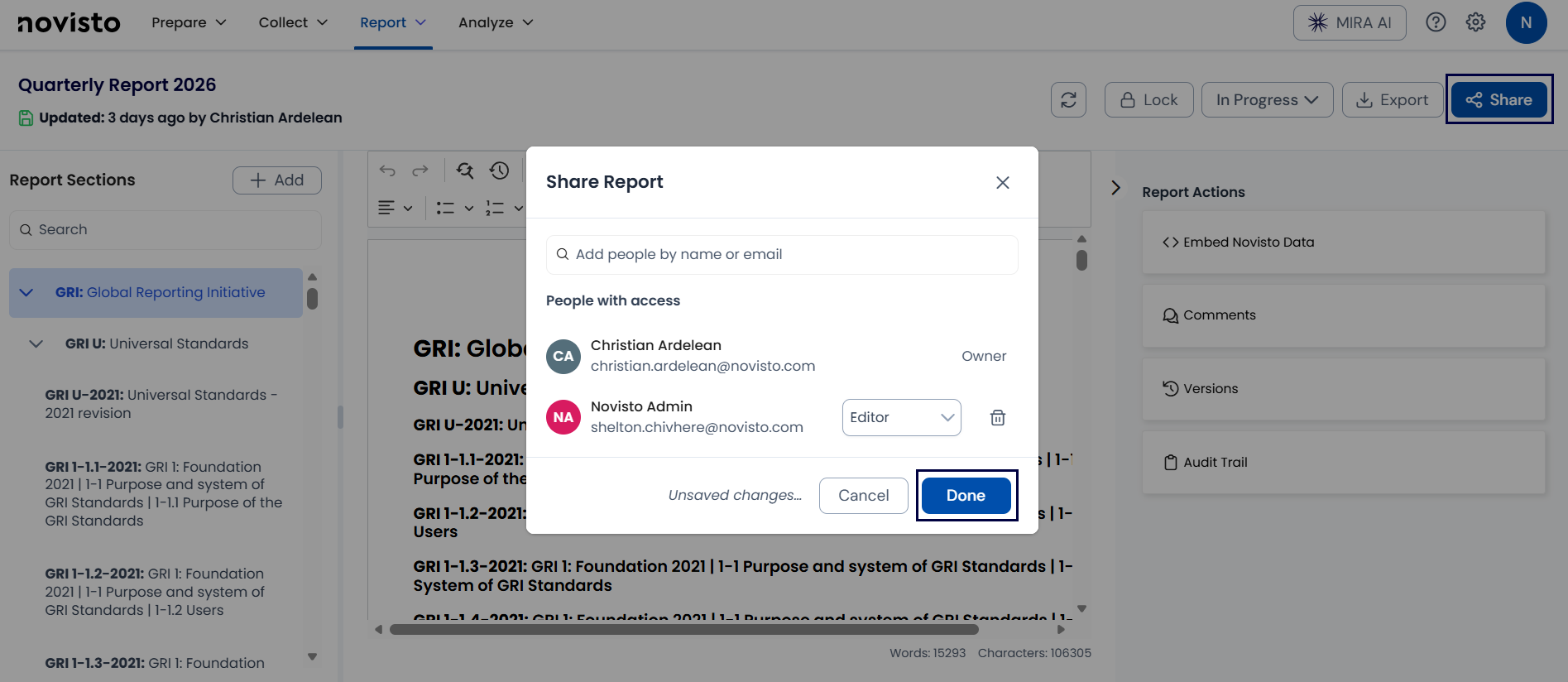
- Sharing a Report: Click Share in the upper-right corner. Search for platform colleagues by name or email, assign their role (Editor, Commenter, or Viewer), and confirm by clicking Done.
- Live Presence & Cursors: Avatars in the top bar show all active users. Colored cursors with user names display edits as they happen without page reloads.
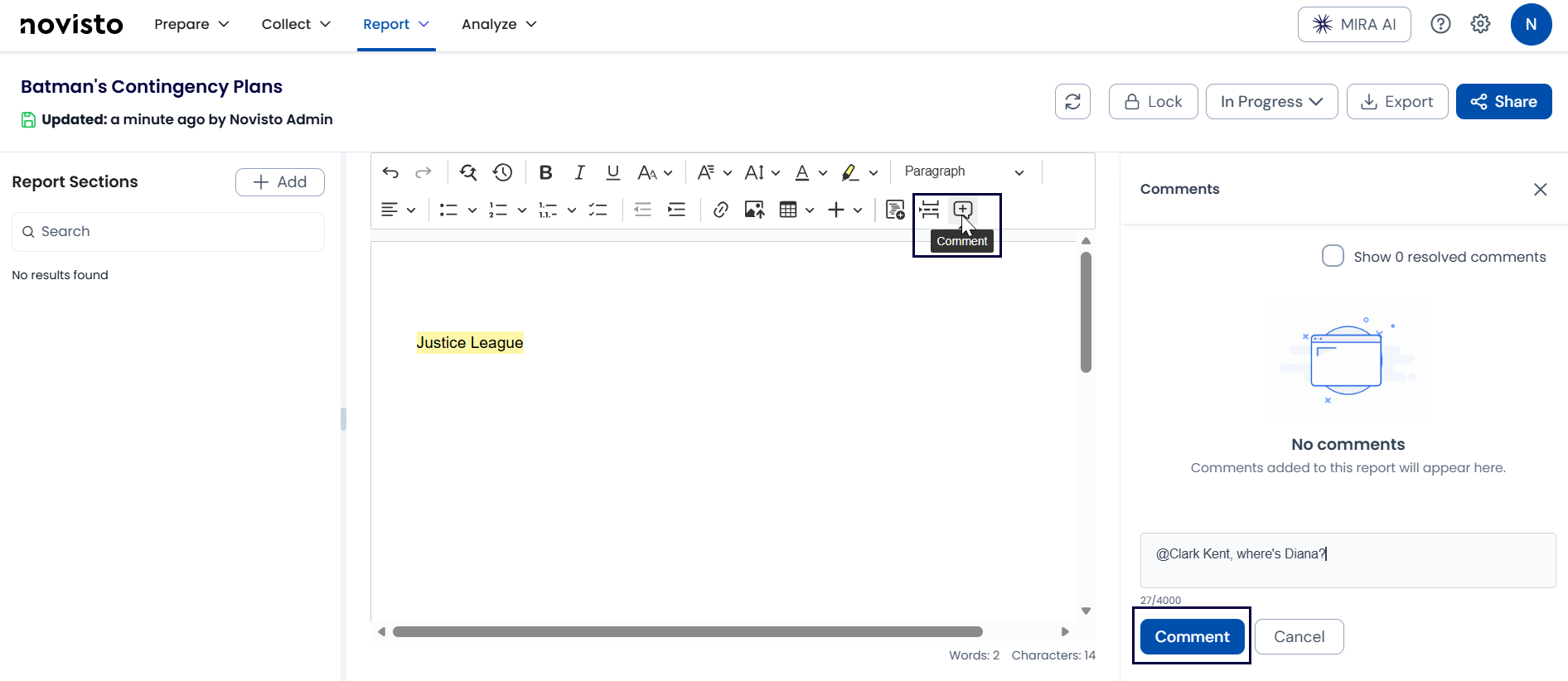
- In-Context Comments: Highlight text and select the Comment icon. Use @mentions to notify specific colleagues via automated email links. Comments can be replied to, resolved, or reopened as needed.
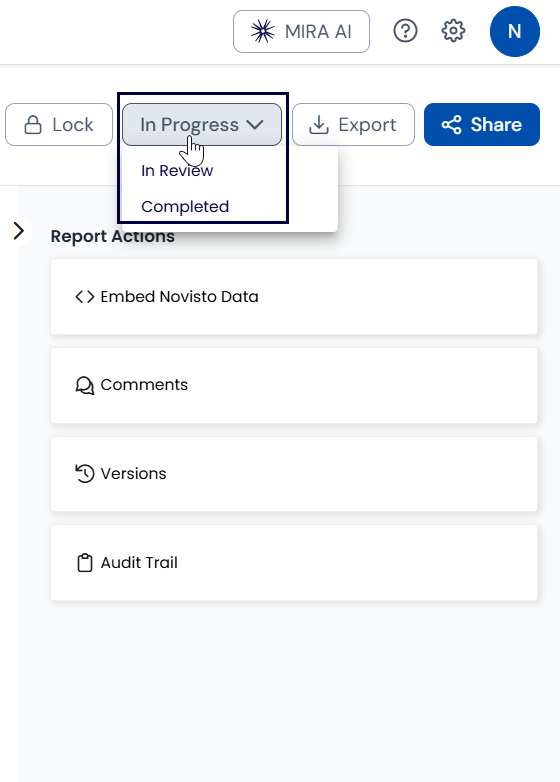
- Status Tracking: Use the report status dropdown in the header to flag whether a report is In Progress, In Review, or Completed.
Versions & Audit Trail
Maintain complete transparency and governance throughout the document lifecycle: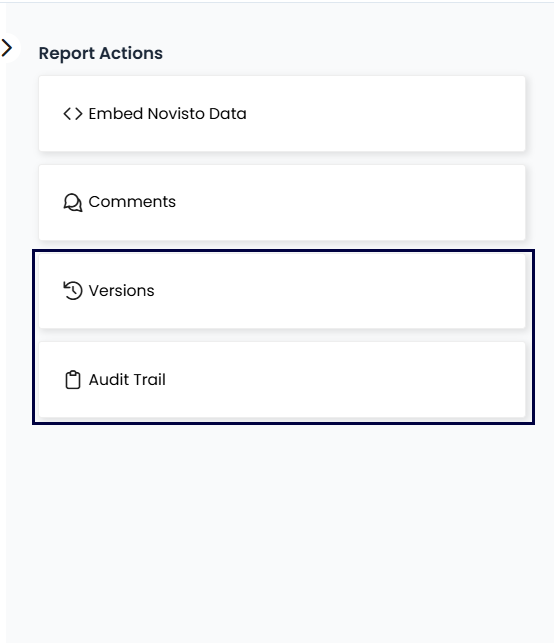
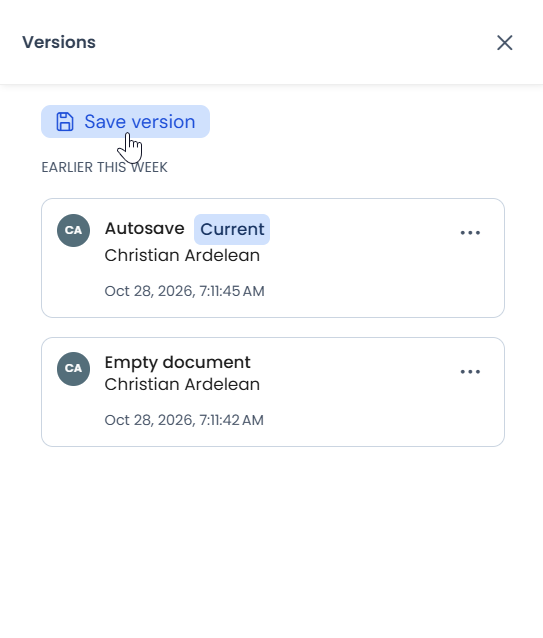
- Named Versions: Open the Versions tab and click Save version to record major milestones (e.g., Legal Sign-Off, Q3 Draft for Auditors). You can view earlier snapshots in read-only mode or restore prior states.
- Autosave Checkpoints: When contributors exit a report, Novisto automatically captures an Autosave version to safeguard against unexpected session loss.
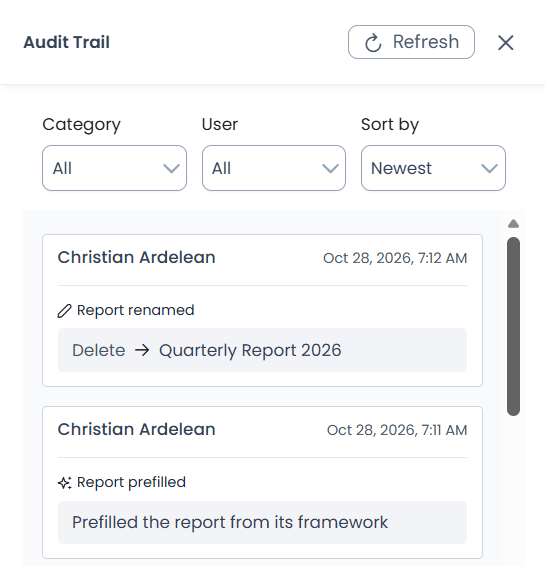
- Tamper-Evident Audit Trail: The Audit Trail tab logs every action taken across the report, including text changes, embeds, status transitions, section locks, and permission updates. Filter by user or event type to prove verification during assurance reviews.
Section Locking & Exporting
When sections are finalized, protect your content before delivering it to external teams:
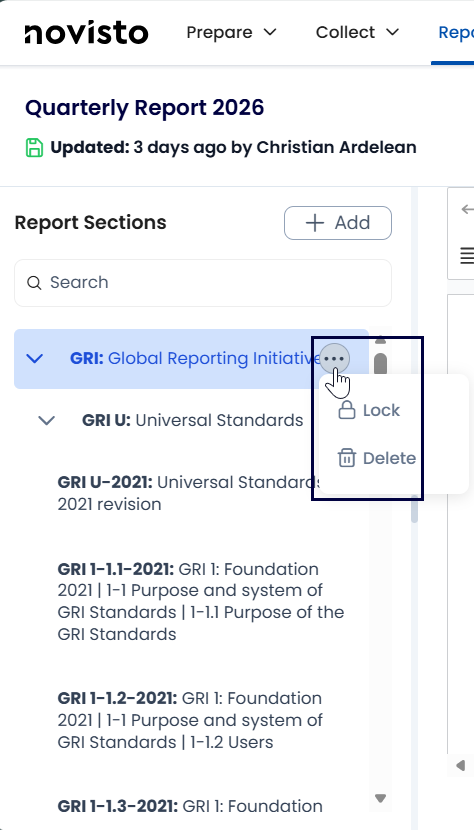
- Lock Sections: In the left outline panel, click the three-dot menu on any completed chapter and select Lock. A padlock icon appears, making that section read-only for all contributors while drafting continues elsewhere.
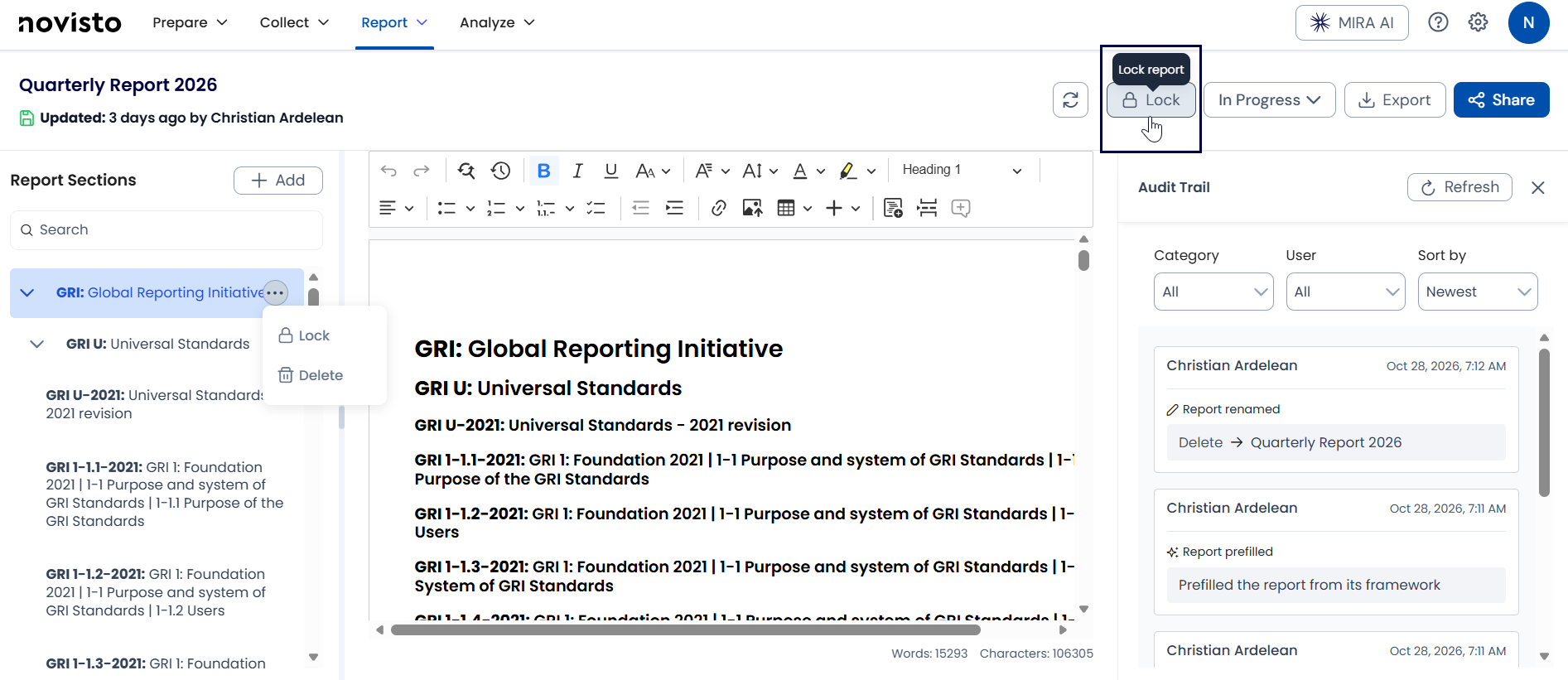
- Lock Entire Report: Click Lock in the top toolbar to freeze the entire document when handing it off to auditors or leadership.
- Pre-Export Checklist:
- Perform a manual Sync to ensure all embedded data points reflect the latest library numbers.
- Inspect Already Embedded Data to verify that no unintended No Value tokens remain.
- Save a named milestone version (e.g., Sent to Agency).
- Perform a manual Sync to ensure all embedded data points reflect the latest library numbers.
- Export: Click Export in the top header to download your draft as a clean PDF or Word file ready for graphic layout and external publication.

Was this article helpful?
That’s Great!
Thank you for your feedback
Sorry! We couldn't be helpful
Thank you for your feedback
Feedback sent
We appreciate your effort and will try to fix the article